10 Countdown Timer Popup Examples, Benchmarks & Best Practices


Summarize
A countdown can shorten hesitation, keep a reward from being forgotten, or — when it runs too long — give shoppers permission to come back later. The clock is the same. What changes is what it controls, where it appears, and whether the deadline feels real.
This guide breaks down 10 countdown timer popup examples across lead capture, games, flash deals, and seasonal sales. We examine what each setup gets right, what may hold it back, and when the format makes sense.
You’ll also find Claspo benchmarks drawn from millions of widget views and a comparison of fixed and personal timers. A short setup guide and practical rules will help you avoid fake urgency, expired offers, and timers that visitors barely notice.
TL;DR
A timer alone was not an automatic lift: email + timer averaged 3.18% CR, versus 3.33% for email only.
Games changed the picture. Gamification + timer averaged 12.85%, while pre-game timers reached 13.56%.
Christmas countdown-only popups reached 9.75% CTR; BFCM timer-only campaigns reached 5.56%. During BFCM, the highest CTR came from combining a promo code with the timer.
Fixed timers suit shared deadlines. Personal timers need to retain the original expiry time across visits.
Measure the outcome that follows the timer: signups before form submission, purchases or redemptions after it.
What is a countdown timer popup?
A countdown timer popup tells visitors how long they have to act. The timer may also appear in a floating bar or directly on the page. Either way, the deadline needs to mean something: once the clock reaches zero, the offer or access should end.
Before creating one, decide how the deadline should apply:
Timer type | How it works | Best suited to |
Fixed deadline | The campaign has one end date and time. Every visitor counts down toward the same moment. | Seasonal sales, product launches, limited drops, shipping cutoffs, and events. |
Relative or personal deadline | The countdown starts separately when each visitor triggers the popup. Everyone can receive the same amount of time, but their deadlines will differ. | Evergreen welcome discounts, first-order offers, and limited access to gated content. |
A relative countdown timer starts when a visitor first sees the popup. If they return later, the timer should show how much time remains from that original window instead of starting over.
10 countdown timer popup examples
Below are 10 countdown popup examples and related onsite formats. We’ll look at what each setup gets right, where it falls short, and when it makes sense.
Popup with an event countdown (fixed deadline)

This is the cleanest, “no drama” use of a countdown timer: it’s counting down to a real event start time. The timer isn’t trying to manufacture urgency — it’s just making the schedule impossible to ignore.
What works well here, and why the timer helps: days + hours + minutes makes sense for events. This timer format fits the context. A 7-day countdown feels normal for a webinar. You’re not forcing a 10-minute panic window.
What could be improved: adding the actual date/time + timezone near the timer. A countdown is great, but users still want the anchor: “Starts on Feb 21, 2 PM ET”. This reduces anxiety for international audiences and avoids “wait… what time is that for me?” moments.
BOGO flash deal popup with a short countdown (fixed window)

This one is a classic “promo-first” e-commerce countdown timer popup: one offer, one action, one clock. The timer is doing real work here because a BOGO-style deal is easy to understand — and easy to postpone.
What’s strong, and how the timer helps: BOGO deals are straightforward and transactional. A ticking timer fits that vibe better than long explanatory copy or “fear of missing out” paragraphs.
Countdown timer format fits a flash deal: hours/minutes/seconds signals “this is a short window”. For quick promos, seconds can be helpful because it visually reinforces momentum.
Popup with a second-stage countdown timer
This popup is doing something smarter than “here’s a timer, hurry up”. The timer doesn’t hit you on the first screen. It shows up after you’ve made a small choice — and that order matters.
What’s strong here, and why the timer works better on stage 2:
Micro-commitment first, friction second. The first step asks a low-effort question (“What brings you here today?”). Clicking a button is easy. Once someone has picked an option, the email step feels like a continuation, not a cold ask.
The countdown timer supports momentum, not discovery. On step 1, people are still orienting. On step 2, they already entered the flow. That’s the right moment to add a countdown — it pushes completion, not attention.
Mystery discount pairs naturally with a countdown timer. A surprise incentive is emotional (curiosity-driven). A short clock adds urgency to that curiosity. This combo can outperform a plain “10% off” banner.
The big question: is 30 seconds good? It can work, but it’s risky. 30 seconds is not a deadline. It’s a stress test. On desktop with autofill, it’s fine. On mobile (typing, switching keyboards), it’s easy to miss — and then people think “ugh”. Follow these mobile popup best practices when choosing a timer length for smaller screens.
What a 30-second timer tends to do:
Filters for high-intent + fast-entry users (autofill, returning customers).
Loses a chunk of valid leads (mobile, slower typers, non-native language users).
Increases “this feels pushy” reactions.
A timer that feels like a bomb countdown can work against you. What could be improved without killing the concept? Give the user a realistic window, like a minute.
Gamified popup with a pre-play countdown timer

Here, the brand places the countdown on the first screen, next to the wheel. What appears to be expiring is the chance to play — not a reward the visitor has already won. That changes the timer’s role.
What’s strong here: the countdown works with curiosity. Visitors do not know which discount they will receive, while spinning the wheel requires almost no effort. A real deadline can shorten hesitation and get more people into the flow.
Once the wheel reveals the 15% reward, the timer disappears and the popup asks for an email address. At this point, the revealed discount gives visitors a reason to complete the form. They are not being rushed while entering their details.
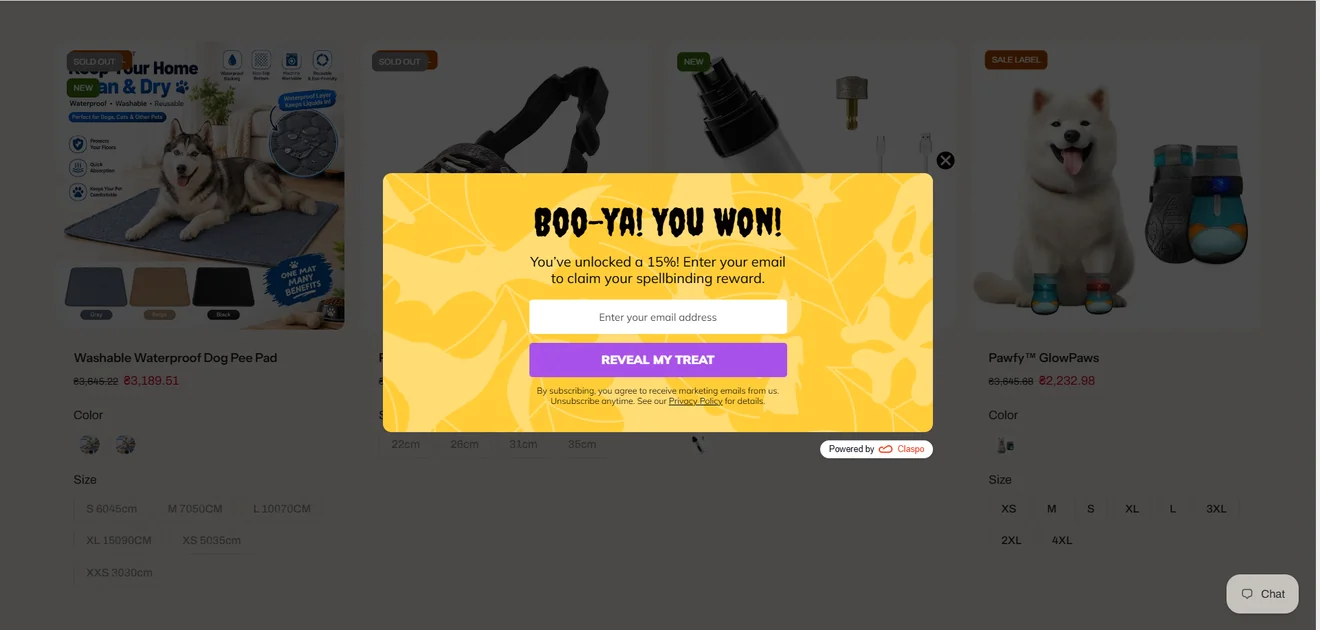
This sequence makes the most sense for a genuinely time-limited seasonal game or short promotion. It is less convincing in an evergreen campaign if the timer simply restarts on every visit.
What could be improved: the copy should explain exactly what ends when the countdown reaches zero — the opportunity to spin, the Halloween campaign, or access to the discount.
What to test: compare the play rate and completed email signups with the same wheel shown without a timer.
Gamified popup with a post-win countdown timer
The next example reverses the sequence. Visitors can play without a visible deadline, and the countdown appears only after the reward is revealed. Here, the timer does not drive participation. It encourages the winner to use the discount while it is still available.
It creates a clean psychological arc:
Curiosity (find the bag).
Engagement (tap to play).
Reward reveal (you won 15%).
Urgency (use it before it expires).
The countdown timer popup now protects the reward from becoming a souvenir.
Floating bar countdown for a seasonal sale
This one is a persistent floating bar at the top of the site. Different format with different psychology. What’s strong here, and why a floating bar makes sense:
Low friction, high visibility. A floating bar doesn’t interrupt browsing. It stays present while users scroll, compare, and explore. For a multi-day seasonal sale, that’s ideal.
It creates background urgency. Instead of “act right now,” it communicates “this window is finite.” It feels informational rather than aggressive.
Floating countdown timer bars tend to perform best when the deadline is tied to something real and widely relevant — like seasonal campaigns, sitewide promotions, scheduled price increases, shipping cutoffs, or major product drops.
They’re less suited for situations that require immediate action or personal commitment. Lead capture flows, short micro-deadlines (like 10-15 minute offers), or deep-funnel urgency such as cart recovery usually benefit from more direct formats than a passive bar at the top of the page.
Exit-intent cart countdown timer popup
Exit intent is a last-second moment. The visitor is already drifting away, and you get one shot to change direction. A promo code alone can help, but it also creates a new problem: people grab the code and leave anyway. That’s exactly what the timer is trying to prevent.
Why the timer fits this use case:
The timer gives the code a short shelf life, pushing it toward immediate redemption.
If the reason for leaving is small (shipping cost, hesitation, “maybe later”), a short window can be enough to keep them on the site and encourage them to complete the purchase.
Built-in countdown timer banner for a multi-day promotion

This one isn’t a popup or a floating bar at the top. It’s baked right into the page — a full-width banner that lives as part of the layout. That distinction matters. Why this format makes sense for multi-day holiday campaigns:
The urgency feels legitimate. This countdown timer is clearly tied to a calendar event.
It matches a broad, sitewide offer. The offer is BOGO 50% OFF sitewide — that’s a big, global promotion. A large built-in banner communicates scale.
It supports repeat visits. Multi-day promos usually bring people back more than once. A built-in banner helps because it’s simply there every time they return. The clock keeps moving without you having to re-trigger anything, and after a while it just feels like part of the page.
Built-in banner with countdown + decreasing discount

This example takes urgency one step further. It’s not just a countdown to the end of the promotion. It’s a countdown to the best price.
Why this approach is powerful: it introduces loss aversion, not just scarcity. A standard countdown says: “This ends soon.” A decreasing discount says: “If you wait, you lose value.” That’s a completely different psychological trigger. Instead of fearing that the promotion will disappear, shoppers now fear paying more later.
Embedded product-page countdown for a sitewide sale
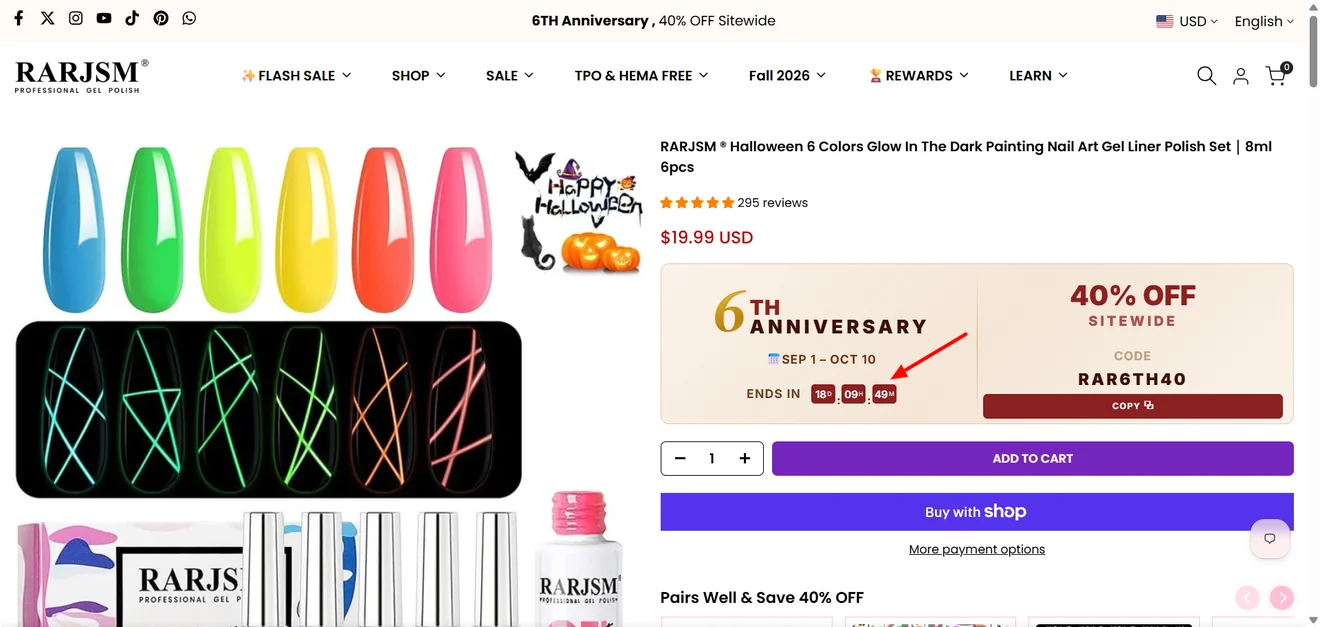
Here, the countdown sits right on the product page, just above the purchase controls. Shoppers see it together with the 40% anniversary discount and promo code.
What’s strong here: the placement. Shoppers see the deadline while evaluating a specific product and deciding whether to add it to their cart. Unlike a popup, the embedded block does not interrupt browsing. It also keeps the discount code within reach, so visitors do not have to search for the promotion terms elsewhere.
Where it falls short: the timer has very little visual weight. The large discount, promo code, copy button, and colorful product imagery all attract more attention. The small countdown is one of the easiest elements to miss.
The promotion runs from September 1 through October 10. With more than 18 days left, the timer gives shoppers little reason to buy now. It mainly confirms when the sale ends — and may make postponing the purchase feel safe.
That does not make a long countdown inherently wrong. It keeps the deadline transparent and can suit a genuine sitewide promotion. But if the goal is to prompt immediate action, the store could show a static end date during the early stage of the campaign and give the countdown more prominence during the final 48-72 hours.
What to test: compare a static end date shown throughout the promotion with a countdown introduced only during the final 72 hours, using purchase conversion rate as the primary metric.
Countdown timer popup conversion benchmarks (2026)
A timer alone did not correspond with a higher average signup rate. The clearest difference appeared in gamified forms: those with a countdown averaged a 12.85% subscription CR, compared with 8.81% without one. The percentiles make that comparison even more interesting.
How we calculated the benchmarks
We analyzed production data from Claspo Grow email list popups between March 18, 2022, and September 22, 2026. Each widget had been published at least once and received at least 100 valid views. Preview traffic, test users, internal organizations, and views from editor, localhost, and Claspo domains were excluded. The complete timer cohort generated more than 6 million views.
For each widget, we calculated:
Subscription CR = subscriptions ÷ valid views × 100
The average CR shown below is the unweighted mean of individual widget rates. A high-traffic campaign does not outweigh a smaller one, and widgets with zero subscriptions remain in the calculation.
Here is how to read the other columns:
P25 — 25% of widgets had this CR or lower.
P50 (median) — half performed below this point and half above it.
P75 — the top-performing quarter starts here.
The 6 million view figure refers to the complete timer cohort. The tables focus on selected configurations and breakdowns, so their rows are not meant to add up to that total.
Subscription CR by widget configuration
Configuration | Avg CR | P25 | P50 | P75 |
Email only | 3.33% | 0.38% | 1.22% | 3.34% |
Phone only | 3.35% | 0.50% | 1.08% | 2.63% |
Email + phone | 3.53% | 0.29% | 0.90% | 2.14% |
Gamification + form, no timer | 8.81% | 1.13% | 3.51% | 8.64% |
Email + timer | 3.18% | 0.48% | 1.58% | 3.54% |
Email + phone + timer | 2.02% | 0.83% | 1.44% | 2.34% |
Gamification + form + timer | 12.85% | 2.18% | 7.37% | 20.65% |
The first three rows contain no timer, promo code, or game. They provide a reference point for standard signup forms.
For regular email forms, adding a countdown did not produce a clear advantage. Email + timer widgets averaged 3.18%, close to the 3.33% email-only benchmark. Their P25, median, and P75 were slightly higher, however. This combination of a lower average and higher percentiles suggests that a few strong email-only campaigns pulled up their group average.
The same pattern is more pronounced in forms asking for both email and phone. Without a timer, these forms averaged 3.53%; with one, the average was 2.02%. However, the timer group had a higher P25, median, and P75. Its results were more tightly clustered, while a smaller number of exceptionally strong campaigns above P75 pulled up the no-timer average. Those outliers may reflect stronger offers, better targeting, higher-intent traffic, or more effective placement — not necessarily the absence of a timer.
Gamified forms stand apart. With a countdown, they averaged 12.85%, versus 8.81% without one. The difference continues across the distribution:
P25 increased from 1.13% to 2.18%.
The median increased from 3.51% to 7.37%.
P75 increased from 8.64% to 20.65%.
The median more than doubled, so the higher average was not produced only by a few exceptional campaigns. Still, these are different live widgets, not variants from a controlled experiment. The data makes gamification + timer a strong test idea; it does not isolate the timer as the cause.
Timer type and placement
Timer setup | Avg CR | P25 | P50 | P75 |
Fixed timer | 8.72% | 1.07% | 2.74% | 10.47% |
Relative timer | 4.36% | 0.92% | 2.44% | 5.15% |
Timer only on the success screen | 10.20% | 2.19% | 4.58% | 8.03% |
Timer before the game | 13.56% | 2.27% | 8.61% | 22.67% |
Fixed and relative timers were fairly close at the midpoint: 2.74% versus 2.44%. The larger gap appeared among stronger campaigns. P75 reached 10.47% for fixed timers and 5.15% for relative timers. High performers also pushed their averages further apart — 8.72% and 4.36%, respectively. Campaign context may help explain the gap: fixed timers often accompany seasonal promotions, launches, and other shared deadlines.
Pre-game timers stand out in this dataset. Their average CR was 13.56%; half of the widgets reached 8.61% or more, and the top quarter started at 22.67%. The cleanest test would use two versions of the same game and change only the countdown on the opening screen. The reward, targeting, and traffic source stay the same.
The success-screen row points to a different test. Its 10.20% average cannot show whether the timer affected signup, since visitors saw it only after submitting the form. The more useful question is whether that timer helps turn a new subscriber into a customer.
Run two otherwise identical success screens, one with a countdown and one without. Purchase events or promo code use will show whether the clock changes what subscribers do next.
These numbers are not a reason to add a countdown to every signup form. The stronger test is more specific: give visitors something worth acting on, then see whether a real deadline helps them complete the flow. Gamified forms — especially those with a pre-play timer — are the most promising place to start.
Seasonal performance: why Christmas behaves differently from BFCM
The subscription benchmarks above cover lead-capture forms. Seasonal campaigns often have a different job. During BFCM in particular, many brands launch promotional popups without email or phone fields. The aim is to get shoppers to click through to an offer or product and move closer to purchase.
For this dataset, a conversion means a click on the widget, so performance is reported as click-through rate rather than subscription CR. The figures come from a broader Claspo study of widgets published over three years. You can find the full methodology and results in our popup statistics report.
Among countdown-only popups, CTR differed by campaign context:
Christmas — 9.75% CTR
Black Friday & Cyber Monday — 5.56% CTR
General (no celebration) — 6.41% CTR
This is interesting. Countdown timers during Christmas outperform both general campaigns and BFCM campaigns — even without additional incentives. Why? Psychologically, Christmas has a natural, external deadline. Shipping cutoffs. Gift planning. Calendar pressure. The timer aligns with something people already feel.
Black Friday popups work differently:
users expect discounts everywhere;
urgency is ambient across the entire internet;
a timer alone doesn’t differentiate.
In fact, users may be waiting for better codes, deeper discounts, or stacked offers. The baseline expectation is already “this is time-limited”. That’s where pairing becomes important.
For BFCM popups:
Promo code + Countdown timer — 7.57% CTR
Promo code + FOMO text — 6.34% CTR
Countdown timer only — 5.56% CTR
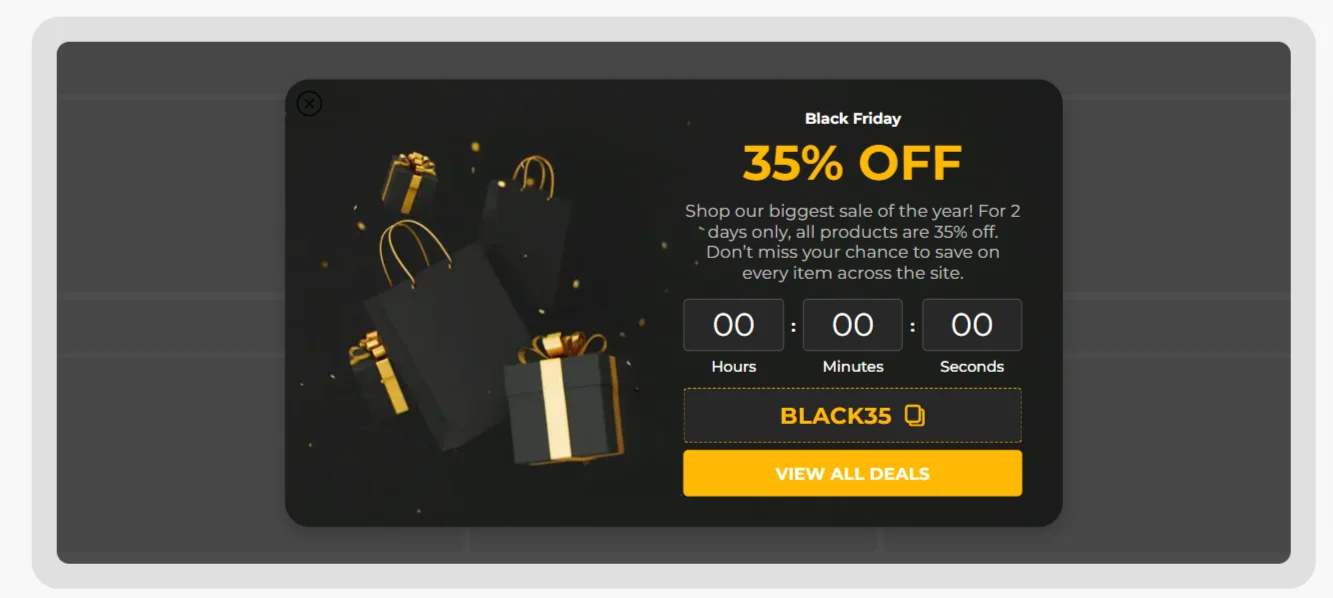
Two insights emerge. A timer performs better than text-based FOMO alone. Visual urgency beats written urgency. But during BFCM, the timer works best when paired with a concrete incentive.
How to create a countdown timer popup (step-by-step)
Let’s put this into practice and build a simple example — a personal countdown popup with a promo code.
1. Start with a pre-built countdown timer popup template
You could start from a blank canvas. But unless you enjoy moving boxes around for 20 minutes, it’s much easier to start with a ready-made sale countdown popup template and adjust it. The layout is already thought through, which means you can focus on the offer instead of alignment.
Turn on the “Timer” filter and the library trims itself down to relevant options. Browse through, grab the one that’s closest to your use case, and adapt it.

We’ll skip the general template customization steps here. For instructions on editing the layout, copy, images, colors, and other design details, follow our step-by-step template tutorial. Below, we’ll focus on the settings that control how the countdown works.
2. Set the countdown timer logic
Before touching the settings, pause for a second and decide what kind of urgency you’re creating. Is this a shared deadline that ends for everyone at the same time? Or is it a personal decision window that starts when the visitor sees the popup?
If you’re running a personalized flash sale, you’ll want a relative countdown — for example, 15 minutes from the moment the widget appears.
Click on the countdown timer component inside the template. Then open the General tab on the right. First, choose how the timer should be displayed. In the Format dropdown, you can select what units are visible:
days + hours + minutes + seconds;
hours + minutes + seconds;
minutes + seconds;
or seconds only.

Pick the format that matches the intensity of your offer. A 48-hour campaign doesn’t need seconds. A 10-minute flash sale does.
Next, click Setup time.
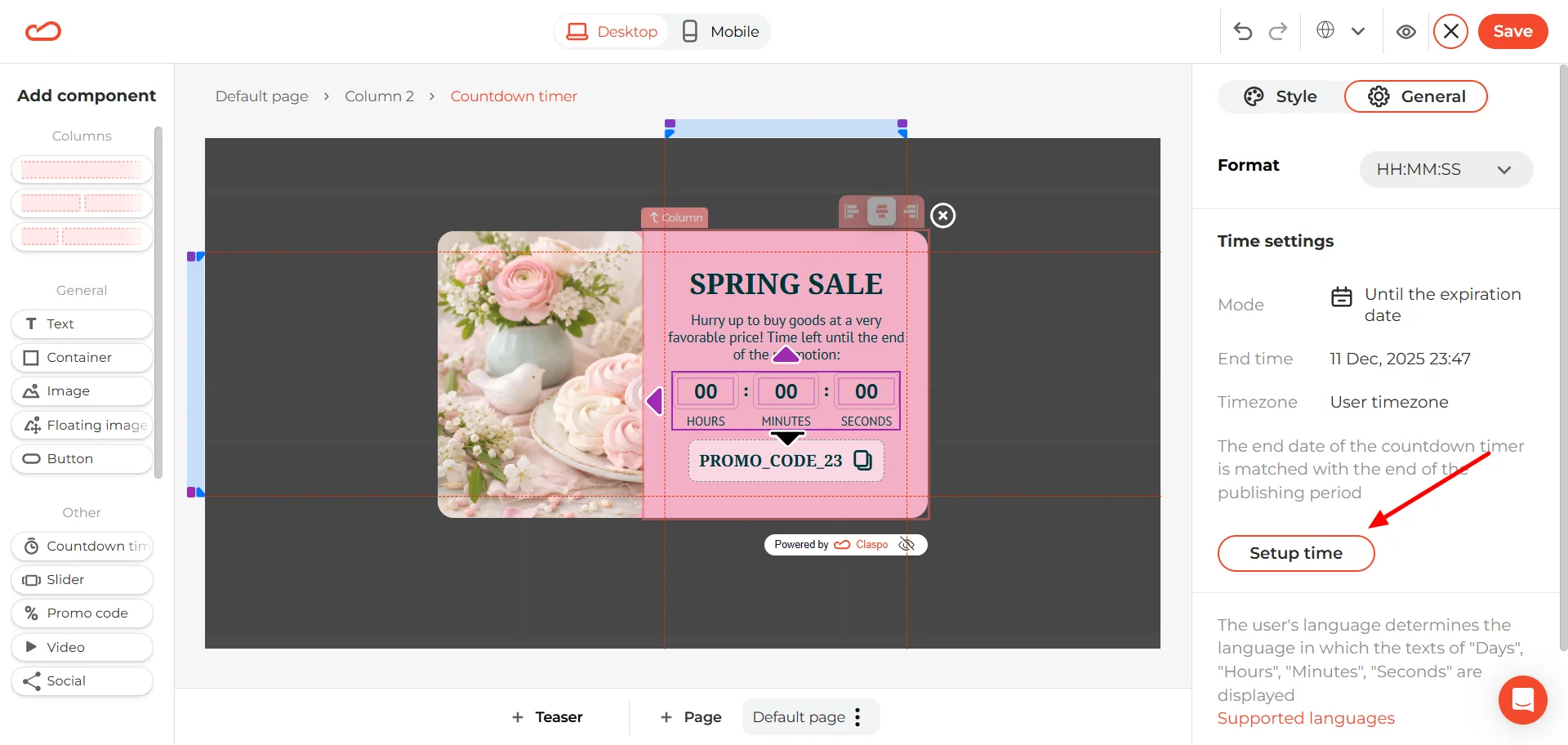
For a relative countdown timer popup, select “From the start of displaying.” Then set the duration. By default, it’s usually 10 minutes, but you can adjust it to whatever fits your campaign.

Below that, you’ll see reset options. You can choose when the popup becomes eligible to show again after the countdown ends:
During the next session,
or after a specific period (for example, 1 day after expiration).
If you don’t want the popup timer to restart at all, simply turn off the “Reset the timer after the countdown ends” toggle.
3. Review the display rules
Claspo templates come with display rules preconfigured according to common best practices. You can keep the defaults or adjust the triggers and targeting to match how visitors behave on your website. See the available options in our Display Rules Help Center section.
Once everything is set, test the widget on your website and publish it.
Countdown timer popup best practices and common mistakes
A good ecommerce countdown timer popup ties the clock to something shoppers can actually lose: a discount, free shipping, a gift, early access, or same-day dispatch.
1. Use a real deadline — and enforce it
Tie the popup timer to something specific: a discount, shipping cutoff, bonus gift, registration window, product launch, or early-access period. Place a short explanation nearby so visitors do not have to guess what the clock controls.
The campaign must also behave as promised. A relative timer should continue from the visitor’s original deadline after a refresh or return visit. A fixed timer should end for everyone at the stated time. Once either timer reaches zero, expire the offer, replace the message, or stop showing the widget.
Avoid leaving an expired timer at 00:00:00. It makes the campaign look neglected and raises questions about whether the deadline was ever real.

Look at the example. This isn’t just a UX oversight. It signals operational sloppiness. Worse, it tells customers the brand doesn’t take its own deadlines seriously. The banner says there's a 15% discount, but the price of the item is down 17%.
2. Match the timer type to the campaign
Use a fixed timer when everyone shares the same deadline, such as a holiday sale, scheduled launch, event registration cutoff, or last day for guaranteed delivery.
A relative timer fits a personal offer that begins when an individual visitor qualifies for it. First-order codes and welcome offers are common examples.
The length of the window should fit the purchase. A short personal timer may work for a familiar, low-cost product. Fifteen minutes feels out of place when someone is comparing furniture, mattresses, or premium clothing. Those purchases need enough time for research; a calmer fixed deadline is usually easier to justify.
3. Put the deadline on value, not always on price
An open-ended welcome code can sit unused in someone’s inbox for months. Giving it a genuine expiry date turns it from a “maybe later” coupon into a defined first-purchase offer. It also prevents a temporary acquisition incentive from quietly becoming a permanent discount.
Price cuts are not the only option. A countdown can apply to:
free shipping above a cart threshold;
a free gift over a certain order value;
a limited bundle bonus;
early access or an extra service.
These offers can encourage a larger order without teaching shoppers that every visit should come with another price reduction. See our discount popup guide for more ways to structure the incentive.
4. Limit who sees the offer and how often
Showing the same countdown discount to everyone weakens it. Visitors may learn to wait for the popup instead of buying at the listed price.
Match the offer to the audience:
Show a personal welcome window to first-time visitors and retain its original expiry time if they return.
Give returning customers a smaller perk, such as free shipping or a gift, when another discount is unnecessary.

Use early access, bonus points, or members-only extras for existing customers.
Reserve an exit-intent offer for meaningful signals, such as several product views or a substantial cart value.
Use product and cart behavior before checkout to identify intent. Do not interrupt the checkout process with another popup.
5. Keep the timer next to what expires
A legitimate deadline can still get lost in the design. Small numbers, weak contrast, dense copy, or a timer placed far from the offer make the countdown easy to overlook.
Keep the clock close to the discount, gift, shipping promise, or other expiring benefit. Check that the numbers remain readable on mobile and that the text explains what happens at zero. The timer should look like part of the offer, not a footnote beneath it.
6. Measure what happens after the timer appears
Choose the metric based on the timer’s position in the flow. If visitors see it before submitting a form, compare subscription CR with and without the countdown. If it appears on the success screen, look at purchase conversion or promo code redemption instead.
Unique codes allow individual time-to-redemption analysis because you can compare when each code was issued and used. With a shared code, analyze results at campaign level: first day versus final day, or the early part of the offer versus its last few hours.
Use your ecommerce reports or GA4 to connect widget exposure with later purchases. For the cleanest comparison, test two versions of the same campaign and change only the timer. Keep the offer, audience, placement, and display rules the same.
Choose the deadline. Then choose the format.
A countdown can mark a shipping cutoff, close a seasonal sale, limit a welcome offer, or give a game reward a short shelf life. Use the countdown timer popup examples above to find the closest match for your campaign.
Choose a popup for a focused offer, a floating bar for a sitewide deadline, or an embedded banner near the purchase controls. Then pick one of our countdown timer popup templates, adapt it to your offer, and launch your campaign to start collecting leads.
FAQ
How do frequency caps work for countdown timer popups (and what settings are recommended)?
Frequency caps control how often the same visitor sees your countdown timer popup. Without limits, the timer can reappear every session — which quickly weakens urgency and annoys users. For most setups:
Relative countdown timers (personal timers) — show once per user. Don’t restart the timer after it expires.
Fixed seasonal campaigns — show once per session at most. The visitor shouldn’t see the same popup multiple times during one visit.
Exit-intent timers — limit to once per session to avoid training “almost leaving” behavior.
How do I handle time zones for fixed end-time countdowns?
If your offer's time limit has a specific expiration — just clearly state it in the popup — something like: “Lasts till Nov 28th at 7:00 PM ET”. That way, people know they have a clear idea of when the deadline is. And no need to worry about time zones in Claspo either — the countdown automatically uses the visitor’s local time as default. So someone in New York and someone in Berlin will each get to see the time left in their own local time, without having to do any manual adjustments.
Are countdown timer popups compliant if the deadline is “evergreen” (is it misleading)?
An evergreen countdown timer popup isn’t misleading by default — it depends on how it’s used. If the timer represents a real, personal window, and the incentive genuinely expires after that period, it’s compliant. The key is that something actually changes when the timer hits zero — the discount stops working, the bonus disappears, or access closes.
It becomes misleading if the timer resets on refresh, restarts every session without limits, or if the offer never truly expires. In that case, the countdown is just decorative urgency — and that can raise compliance and trust concerns.
Are countdown timer popups mobile-friendly?
Yes — countdown timer popups can work perfectly on mobile. In Claspo, all widgets are responsive by default, so the timer and layout automatically adapt to smaller screens.
If you want, you can tweak the mobile view separately. For example, adjust spacing, resize text, or simplify the design for phones — while keeping the desktop version exactly as it is.
Can countdown timer popups hurt SEO or violate Google’s intrusive interstitial guidelines?
Countdown timer popups don’t hurt SEO by default. The risk isn’t the timer — it’s how the popup is shown. Google’s intrusive interstitial guidelines mainly target popups that block content immediately after a user lands on a page, especially on mobile. If your countdown appears right on page load and covers the screen, that can be a problem. To stay safe:
Avoid showing full-screen popups instantly on mobile.
Trigger them after engagement (scroll, time on site, pageviews).
Use less intrusive formats like floating bars for broader campaigns.