How to set up & add a countdown widget on your website
Now, let's create a countdown timer widget promoting a personal flash sale on your website.
Step 1: Pick a template
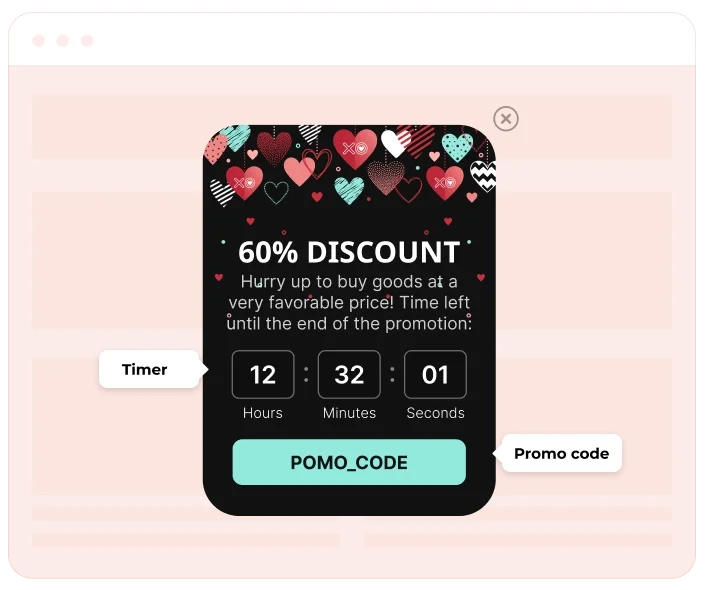
For this setup, we’ll choose a countdown timer template with an embedded promo code and the countdown timer itself — it’s designed for maximum visibility and makes it easy for users to copy the discount.
Step 2: Customize it
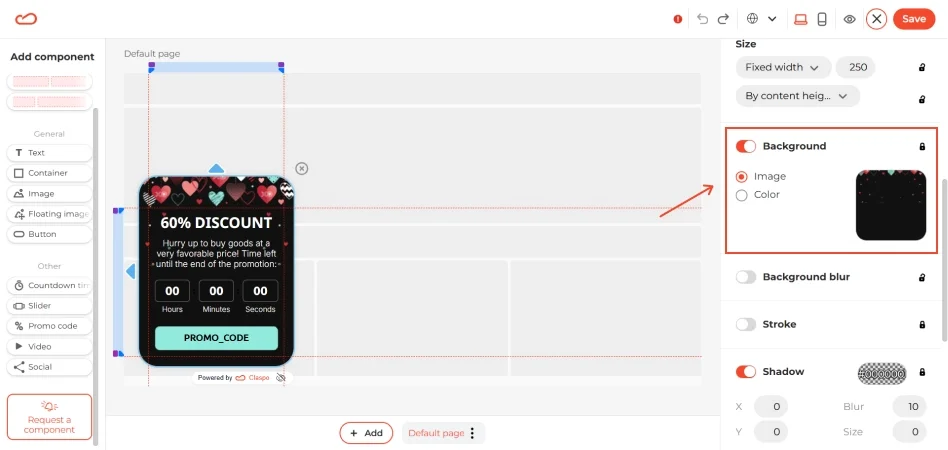
Make the countdown timer widget match your website. Swap out the default background image with one of your own or browse Claspo’s built-in library of free images. Or adjust the background color — use the dynamic palette to experiment or paste in a specific hex code to match your site’s design.
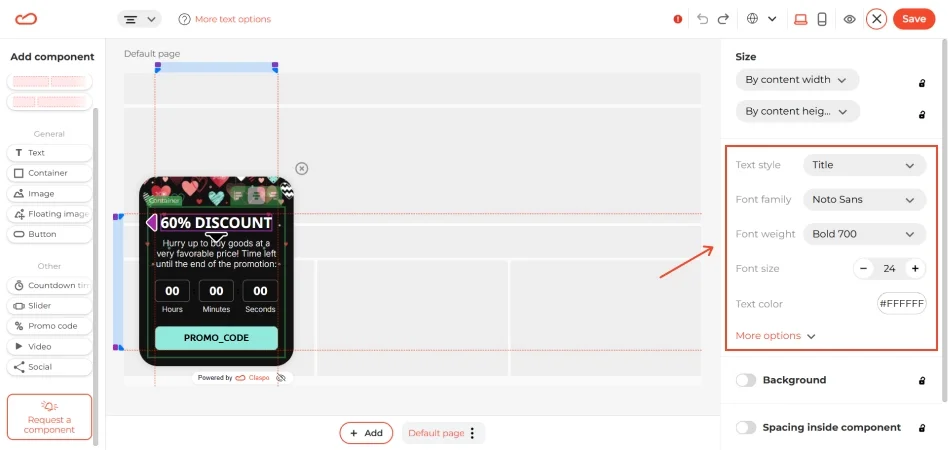
Next, update the text on the countdown timer template. Click on the title and description, then use the right panel to adjust the font, size, and color. Make sure the message is clear and urgent.
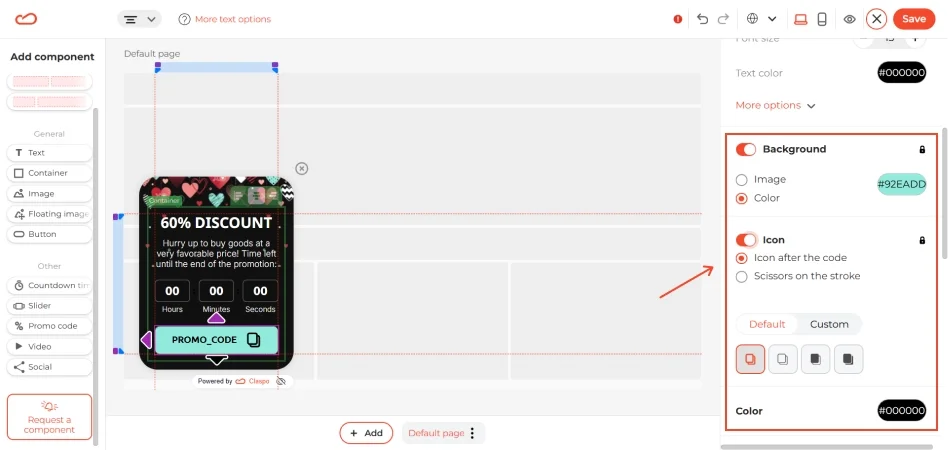
The promo code itself needs to stand out. You can:
- Edit the text to display your unique code.
- Customize the look — add a background, shadow, or select stroke effect.
- Adjust the Copy icon — let users copy the code instantly with a single click.
You can also use a scissors icon next to the code. It subtly signals to users that they should ‘clip’ the deal before it’s gone.
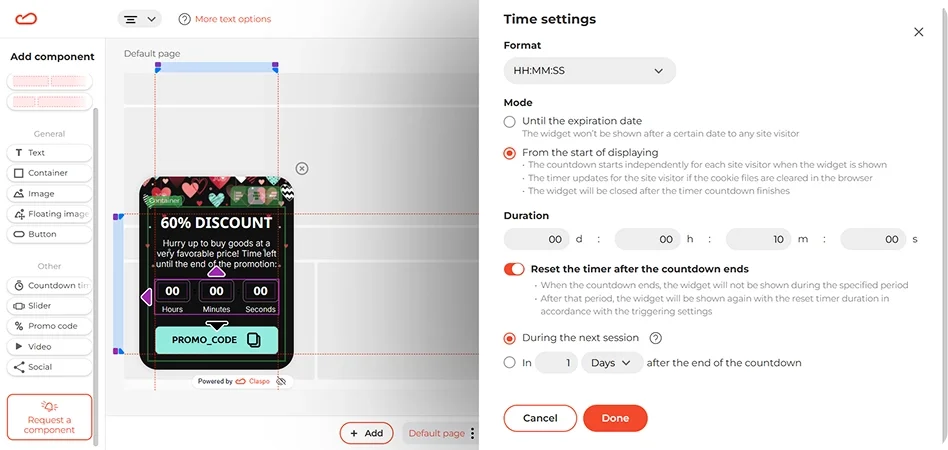
We’ll also set up a countdown timer to create the feel of a personalized flash sale. Unlike a regular promotion that runs for everyone over, say, two days, this timer is unique to each visitor. It starts counting down — let’s say, from 15 minutes — as soon as the pop-up appears, encouraging quick action.
To configure this, click on the countdown timer component in the template, go to General > Setup time > Mode, select From the start of displaying, and set the desired duration (10 minutes by default).
Step 3: Set up triggers
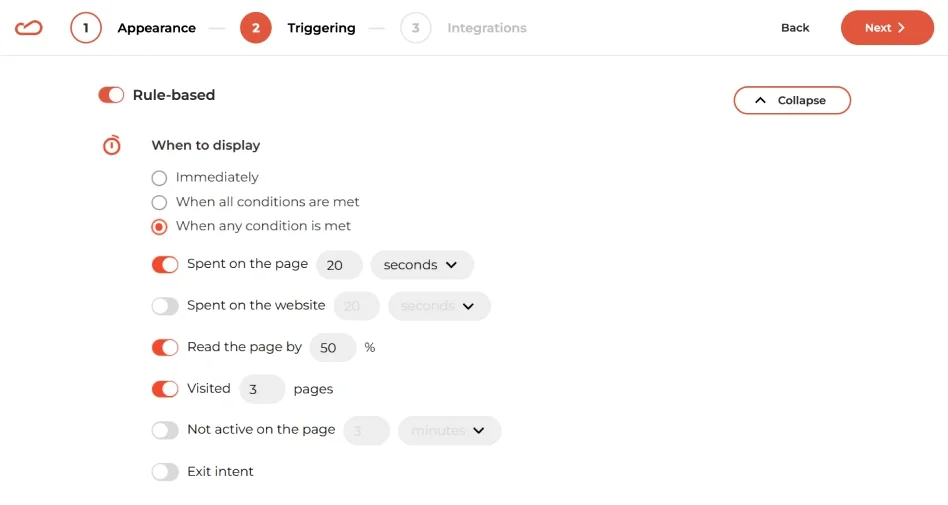
Instead of triggering the countdown timer widget on entry, let’s set it up so the pop-up appears when a visitor is actively browsing your site. Trigger the countdown widget based on user engagement. In the When to display settings, set the popup to appear after a visitor has been on a page for 20 seconds.
Want to mix things up? Try other triggers too — like showing a countdown clock on your website when someone scrolls halfway down the page or after they’ve checked out 3 pages. And if you’d like the pop-up to appear when any of those things happen, just switch the setting to When any condition is met.
This countdown widget doesn’t just announce a sale — it appears when visitors are most likely to act. By setting smart triggers, you make sure your personalized flash sale grabs attention without being intrusive.